- Published on
Organising Notes with PARA
5 min read- Authors

- Name
- Daniel Mackay
- @daniel_mackay
- Introduction
- What is PARA?
- My Implementation
- My Workflow with Apple Notes
- What about files?
- Summary
- Resources
Introduction
In this blog post, we're going to take a slight detour from my usual topics around software engineering or architecture. Instead, we're going to talk about something that affects almost everyone who works in tech (and beyond): note organisation. 📝
People who know me well know I’m a bit of an organisation freak. Notes are something that most of us create every day, yet they often end up in a chaotic mess. I’ve been interested in this topic for a few years, and in this article, I’d like to talk about what I’ve tried in the past, and what I use now to keep my digital life in order.
What is PARA?
PARA is a universal system for organising digital information, developed by Tiago Forte. It stands for:
- Projects: Things I'm actively working on with a goal and deadline.
- Areas: Long-term roles and responsibilities with no end date.
- Resources: Topics I'm interested or curious about. I may want to refer to these later.
- Archives: Inactive items from the other three categories.
These 4 categories are organised from most actionable (Projects) to least actionable (Archives). The idea is to keep your notes and files organised in a way that reflects your current priorities and responsibilities.
Examples
- Projects: Product launch, Birthday party, Sales presentation, Marathon training
- Areas: Productivity, Health, Travel, Finances
- Resources: Science fiction, Recipes, Gardening, Slide templates
- Archives: Completed event, Inactive side project, Last year's marathon, Past client project
Another way to think about projects is that they should take longer than 1-2 working sessions to complete. For example, 'Buying milk' is a bad example of a project, whereas 'Plan Christmas dinner' is a good example.
How can I decide what goes where?
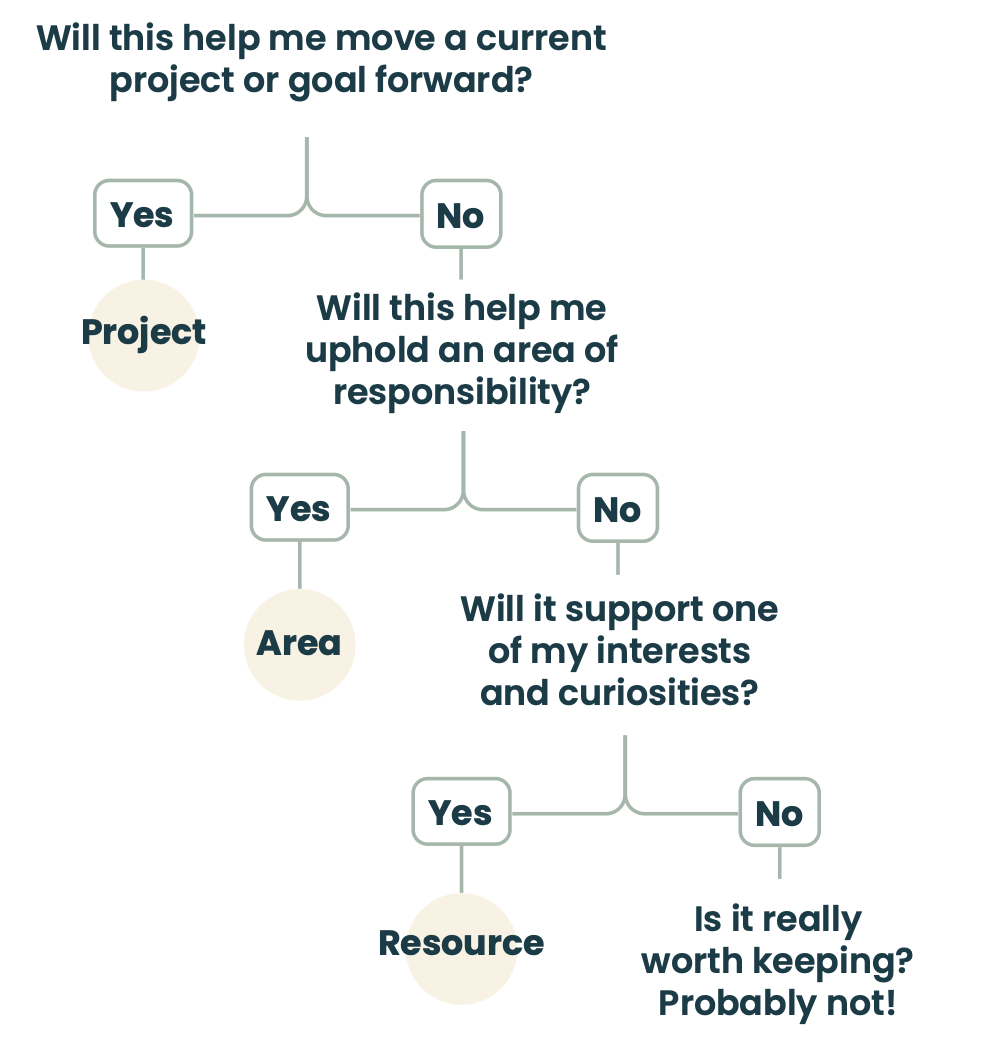
Figure:
PARA Cheat Sheet
My Implementation
While the PARA system is flexible, I've found a few specific tweaks that make it work perfectly for my workflow.
The Power of a Single Project List
I like having a single list of projects so I can see all my top priorities with a single glance. This is crucial because it allows me to prioritise all projects against each other, regardless of whether they are personal or professional. Similar to Scrum, this is my single prioritised backlog of work.
If a task is not related to one of your projects, it’s likely not a priority. Keeping this list lean—usually between 15-25 projects—is normal and helps maintain focus.
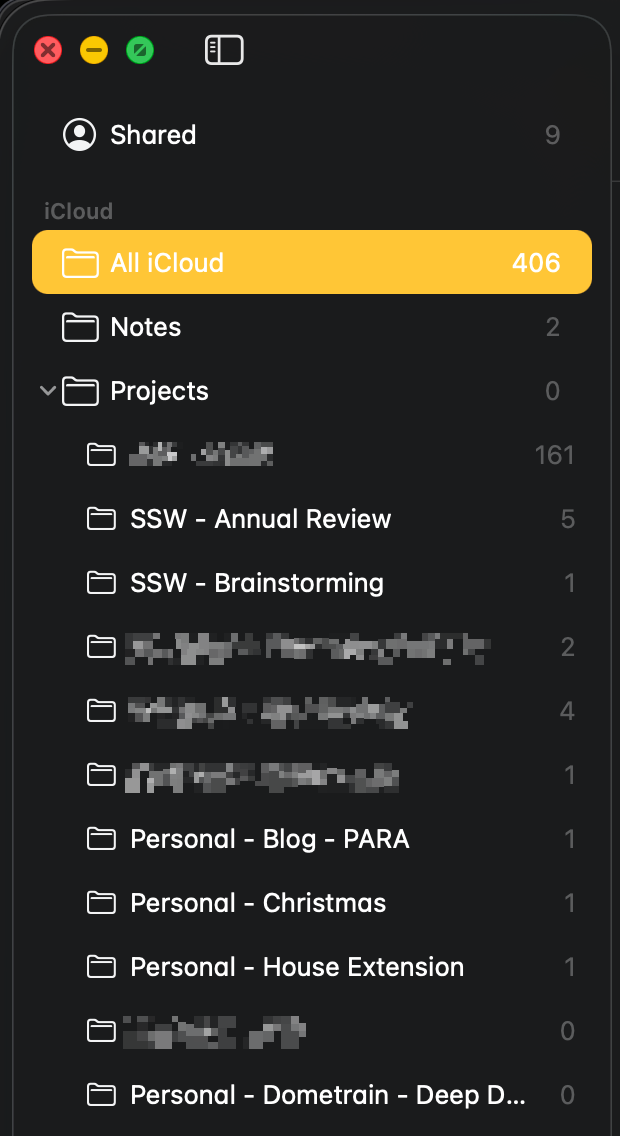
Naming Convention: ENTITY - TITLE
Under each top-level PARA folder, I use a consistent naming format: ENTITY - TITLE.
For example:
Personal - TaxPersonal - ChristmasPersonal - Blog - ParaWork - Training
Entities can be Personal, Work, Client, etc. This makes searching and scanning much faster.
Out of Sight, Out of Mind
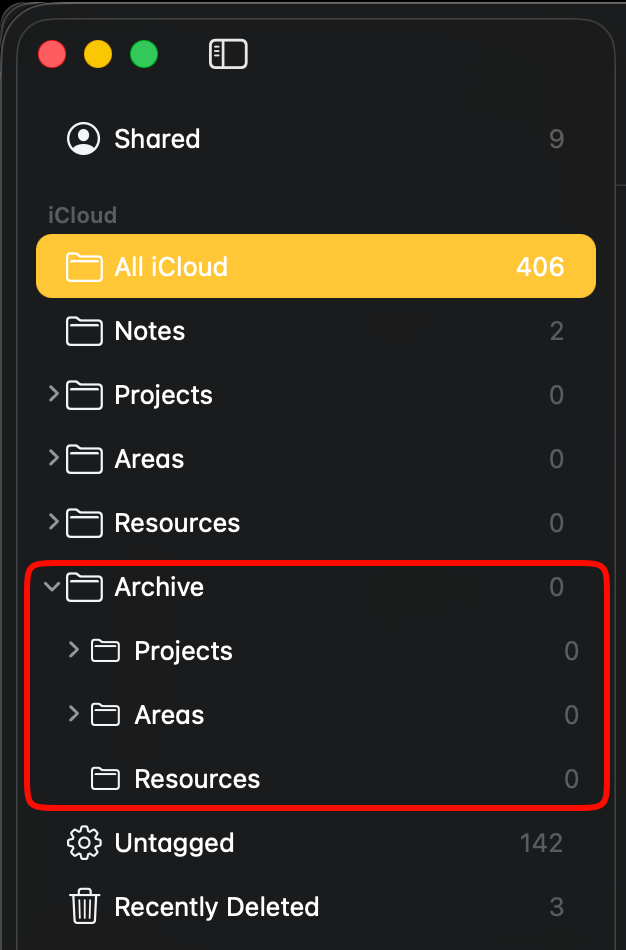
I prefer having the Archive folder separate (as opposed to nested in Projects/Areas/Resources) so that anything archived is completely out of sight and mind. The beauty of this is that archived projects, areas, or resources can always be unarchived once work starts again.
This is one of the most important aspects of PARA for me. It keeps the "active" areas of my notes clean and relevant. Archiving doesn't mean 'deleting'; it means removing distractions. Items that are archived are simply not relevant to my current focus (but may be in the future).
My Workflow with Apple Notes
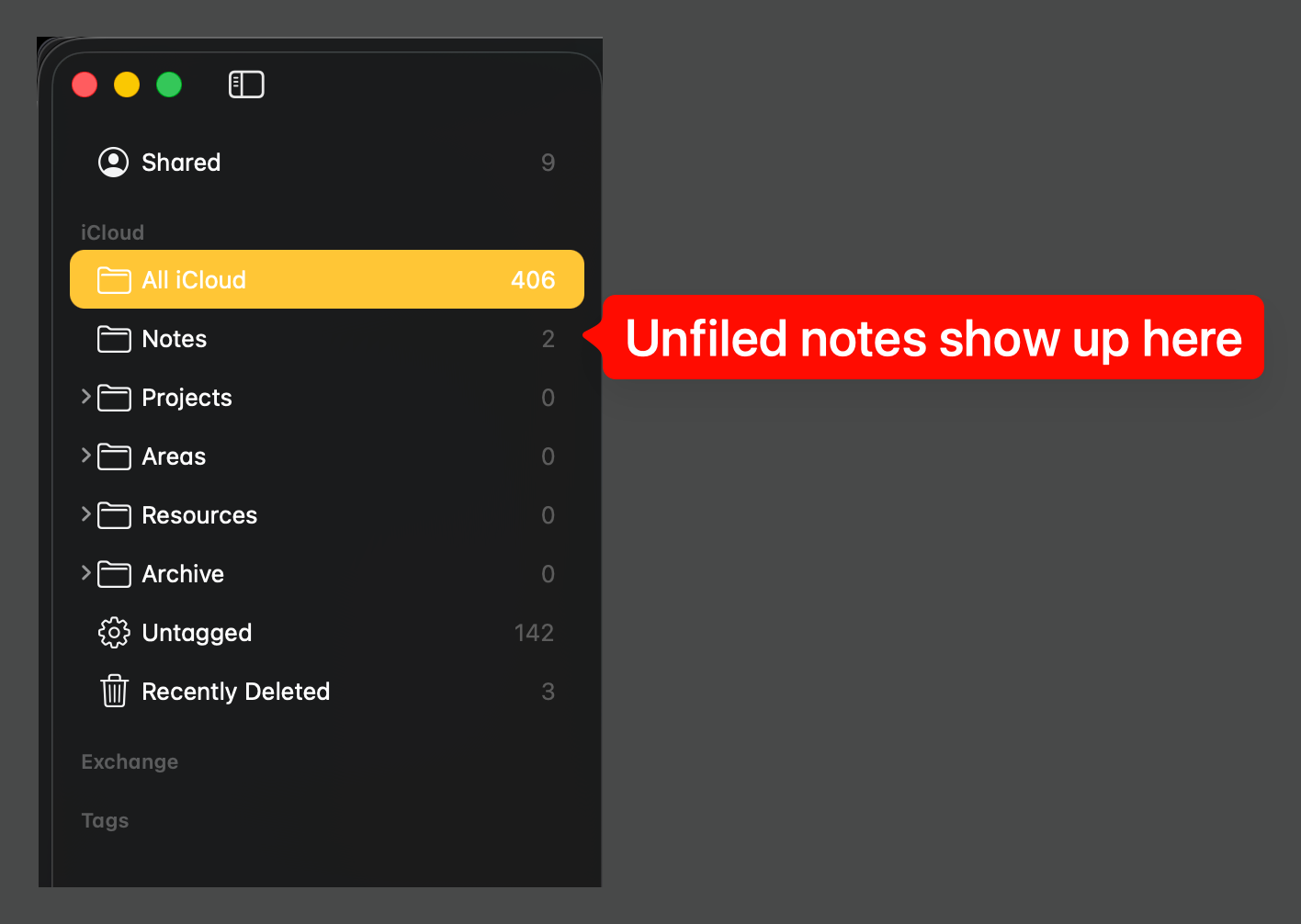
When using Apple Notes, all new notes show up in the ‘Notes’ folder by default. I consider this my Inbox. From here, notes need to be sorted into their respective PARA folders.
I also use tags to group notes by entity (e.g., #Personal, #Work). This allows me to quickly filter notes when needed.
What about files?
Note organisation is only half the battle; what about the files on your computer? You have a couple of options here:
- Embed Files: You can embed files directly alongside the projects, areas, or resources within your note-taking app.
- Mirror Structure: You can mimic the notes folder structure in your file system.
Personally, I’ve mirrored the folder structure in my iCloud storage. This consistency means I always know exactly where to look, whether I'm searching for a note or a PDF.
Summary
Organising notes doesn't have to be a chore. By using a system like PARA and keeping a tight list of projects, you can ensure that your digital workspace supports your productivity rather than hindering it. It guides you towards your most important and actionable work, keeping you focused on what truly matters. Whether you're a software engineer or just someone looking to get more organised, give PARA a try!